
Frequently Asked Questions
Please visit our Tour of Måna for a visual understanding of how the Måna system works.
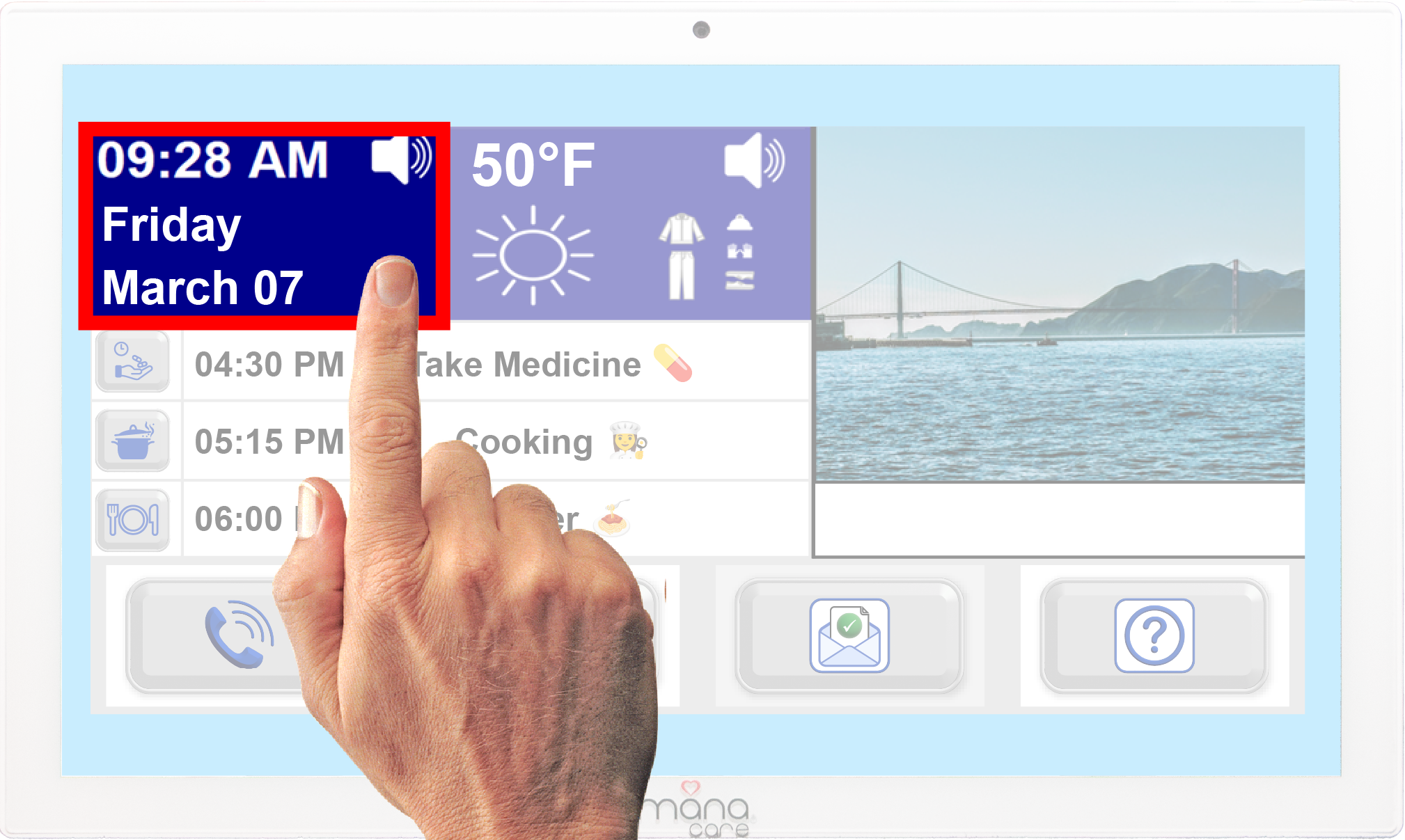
Please Follow These Steps:
- Locate the Tile – On the Måna display, find the Måna Time, Date, and Day of the Week tile. It is the tile in the top left-hand corner of the display, and it actively displays the current time, day of the week, month, and day.
- Select the Tile – Tap or click on the tile to activate its functionality.
- Hear the Announcement – Upon selecting the tile, Måna will audibly announce the current time, day of the week, month, and day.
Repeat if Needed – If the client would like to hear the details again, they can reselect the tile as many times as needed.
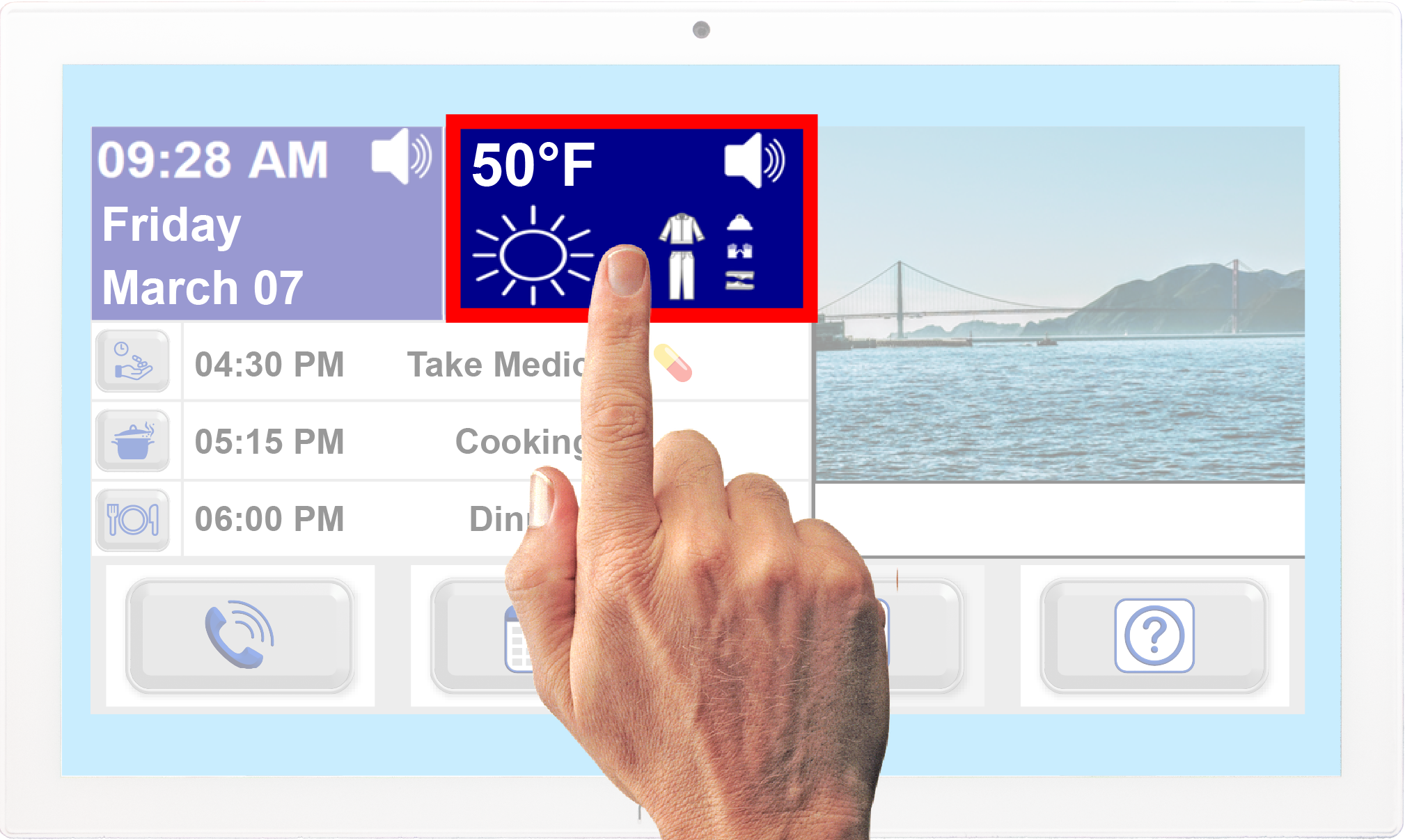
Please Follow These Steps:
Find the Weather Tile
Find the Måna Weather tile on the Måna display located at the top center of the display. It will show:
- The current temperature
- A visual representation of the current weather condition (e.g., sun, rain, clouds, foggy, smoke …)
- If in the configuration of Måna, the options to display the recommended clothing to wear was selected, then a picture of the recommended clothes to wear may also be displayed.
2. Select the Tile
Tap or click the Weather tile to activate it.
3. Listen to the Weather Announcement
Måna will then announce:
- The current temperature and humidity
- The expected daily weather forecast (ie “There will be clear sky today” , etc.)
- The forecast for the rest of the day
4. Receive Clothing Recommendations
If in the configuration of Måna, the options to display and suggest the recommended clothing to wear was selected, then the Måna, weather assistant will suggest the appropriate clothing to wear based on the expected weather forecast for the day. (e.g., Måna, will recommend wearing a jacket for cold weather, bring an umbrella for rain, wear a hat and sunglasses for the sun……).
5. Re-select for Updated Forecasts
If the user wants to hear the weather again or check for updates later in the day, they can tap the tile again.
Måna’s weather is updated
Måna’s weather is updated every 3 hours or 8 times a day.
1. Adding an Activity
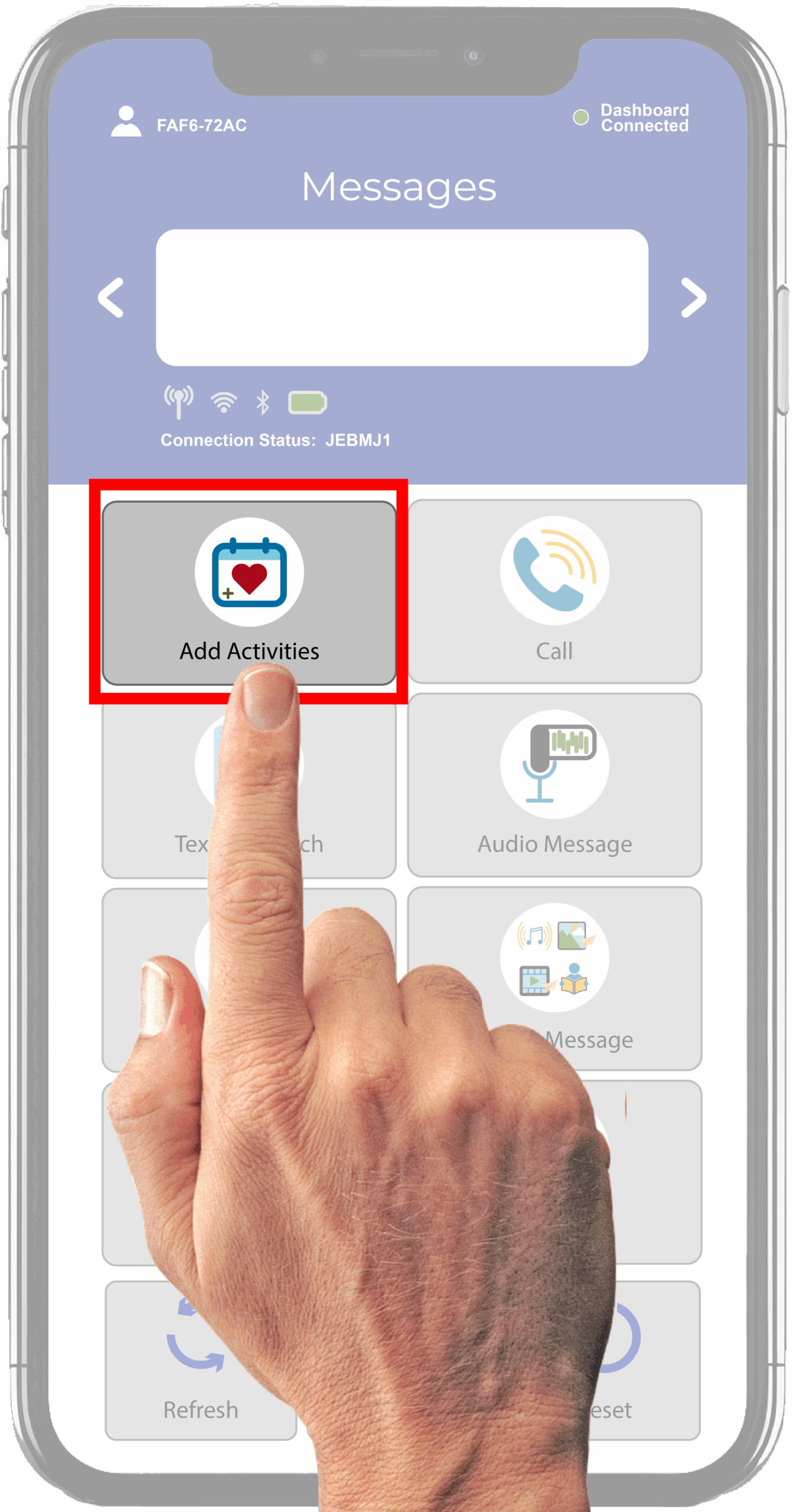
Activities can be set using the Måna mobile app by the Administrator or Advisor selecting the “Add Activities” button in the mobile app.
2. Entering an Activity
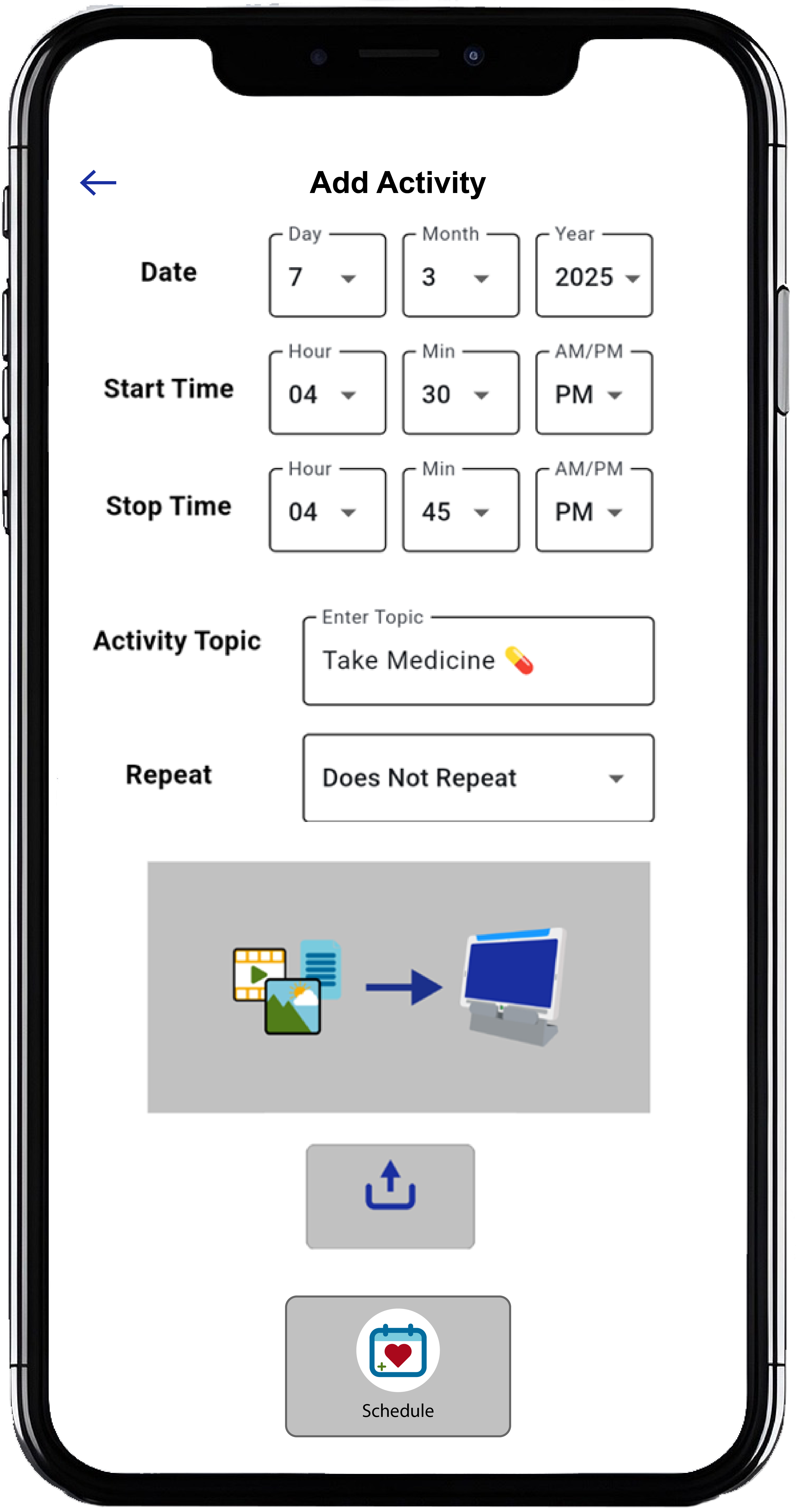
Once selected, the Administrator or Advisor will:
- Select and Set the calendar Date: (Note the date is in a European format where the day of the week is set first followed by the month and year).
- Activity Start and Stop Time: Next, enter the activities Start Time and Stop Time. (Please note both a start and stop time must be entered for the activity to be valid).
- Activity Topics: Next add an Activity Topic and try to keep the activity to 3 or 4 words. If you go beyond 3 to 4 words the topic will be captured, but it may be truncated when showing on the Client display. If it is truncated on the Client display, Måna will read the full topic entered 5 min prior to the topic starting unless the Administrator changes this pre-alert time in the Måna Care mobile app under the options menu. After the pre-alert is made, then the activity will be announce a second time once the activity reaches its start time.
- List of “Activity Icons” & Key Words : The Måna Client has a number of preprogrammed Activity Icons that shows a picture of the type of activity scheduled on the Client. The key words associated with each “Activity Icon” can be found by selecting the (+ Features) button on the home page of the Måna mobile app. Select the Support icon and your language tab to see the activity icons key words available to use.
- Next, set the repeat activity option by expanding the arrow in the box to select the desired setting.
- After setting the repeat activity choice, the Måna mobile app provides an option to either attach a media file to the activity or send the activity directly to the client with no media file attached.
- If no media file is selected to attach, then the activity can be sent to the Måna client immediately by selecting and tapping the mail icon showing the calendar image at the bottom of the screen.
- If you would like to select a media file to attach to the activity, then this can be done by:
- selecting and pushing the smaller gray icon button with the tray and upward pointing arrow.
- Once selected a window will appear at the bottom of the mobile app that allows you to select a photo or video or file to attach to the activity. Under the file selection, this can be a music file or a text file for a book, poem, or directions, or a mp3 audio book file or radio show.
- After selecting your file, the mobile app will automatically compress and attach the file successfully to the scheduled activity.
- Once the media file has been successfully attached, then the activity needs to be sent to the Måna client by selecting and tapping the mail icon showing the calendar image at the bottom of the screen.
1. Adding an Activity
Activities can be set using the Måna mobile app by the Administrator or Advisor selecting the “Add Activities” button in the mobile app.
2. Entering an Activity
Once selected, the Administrator or Advisor will:
- Select and Set the calendar Date: (Note the date is in a European format where the day of the week is set first followed by the month and year).
- Activity Start and Stop Time: Next, enter the activities Start Time and Stop Time. (Please note both a start and stop time must be entered for the activity to be valid).
- Activity Topics: Next add an Activity Topic and try to keep the activity to 3 or 4 words. If you go beyond 3 to 4 words the topic will be captured, but it may be truncated when showing on the Client display. If it is truncated on the Client display, Måna will read the full topic entered 5 min prior to the topic starting unless the Administrator changes this pre-alert time in the Måna Care mobile app under the options menu. After the pre-alert is made, then the activity will be announce a second time once the activity reaches its start time.
- List of “Activity Icons” & Key Words : The Måna Client has a number of preprogrammed Activity Icons that shows a picture of the type of activity scheduled on the Client. The key words associated with each “Activity Icon” can be found by selecting the (+ Features) button on the home page of the Måna mobile app. Select the Support icon and your language tab to see the activity icons key words available to use.
- Next, set the repeat activity option by expanding the arrow in the box to select the desired setting.
- After setting the repeat activity choice, the Måna mobile app provides an option to either attach a media file to the activity or send the activity directly to the client with no media file attached.
- If no media file is selected to attach, then the activity can be sent to the Måna client immediately by selecting and tapping the mail icon showing the calendar image at the bottom of the screen.
- If you would like to select a media file to attach to the activity, then this can be done by:
- selecting and pushing the smaller gray icon button with the tray and upward pointing arrow.
- Once selected a window will appear at the bottom of the mobile app that allows you to select a photo or video or file to attach to the activity. Under the file selection, this can be a music file or a text file for a book, poem, or directions, or a mp3 audio book file or radio show.
- After selecting your file, the mobile app will automatically compress and attach the file successfully to the scheduled activity.
- Once the media file has been successfully attached, then the activity needs to be sent to the Måna client by selecting and tapping the mail icon showing the calendar image at the bottom of the screen.
Please Follow These Steps:
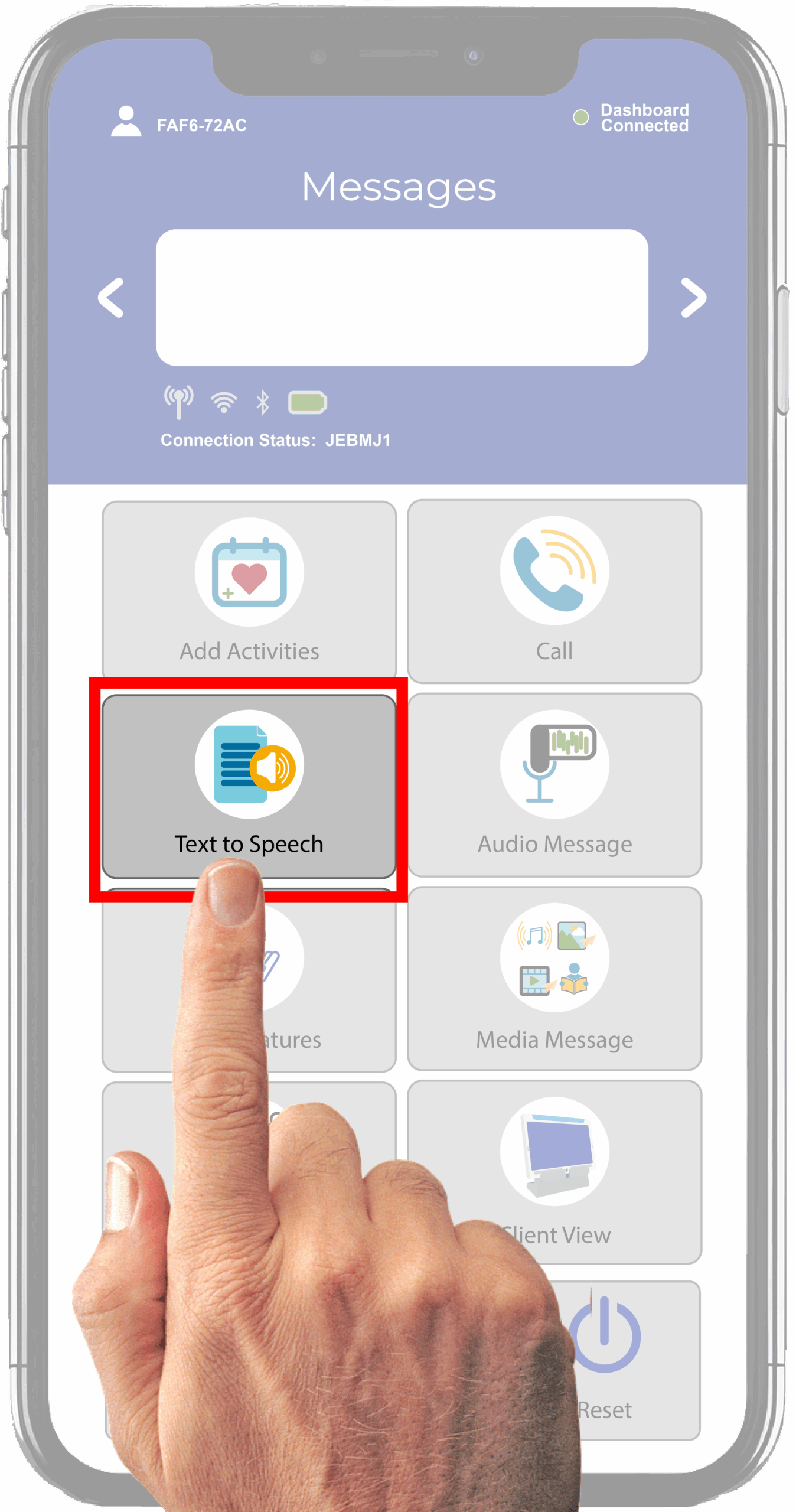
- Text-to-Speech Feature – Select the Text-to-Speech icon in the mobile app.
- Compose the Message – Type your message to your loved one in the text box
- Send the Message – Once finished, select the send message icon on the screen to complete the action.
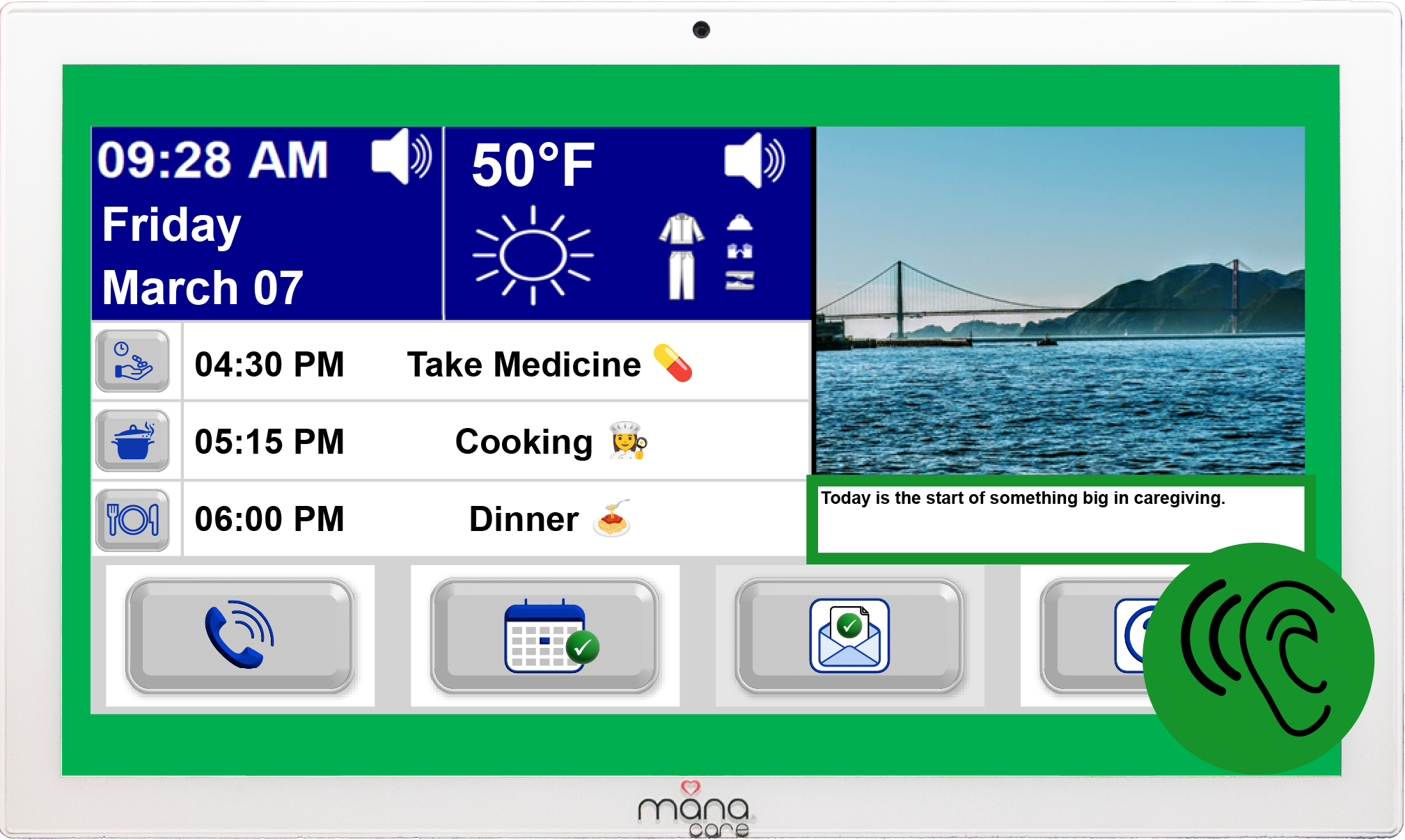
- Receive Text – Speech – Message – After the message is sent from the mobile app, Måna will receive the message:
- Måna’s LED will flash “Green” to visually alert the Client of an incoming Message
- Then, Måna will play a short video announcement “There is an Incoming Message”
- The text message will be displayed under the memory tile
- Hear the Message Read Aloud – Måna will automatically read the message to the client in the preset language that thee Måna client is configured in.
1. Choose a Voice Message Type
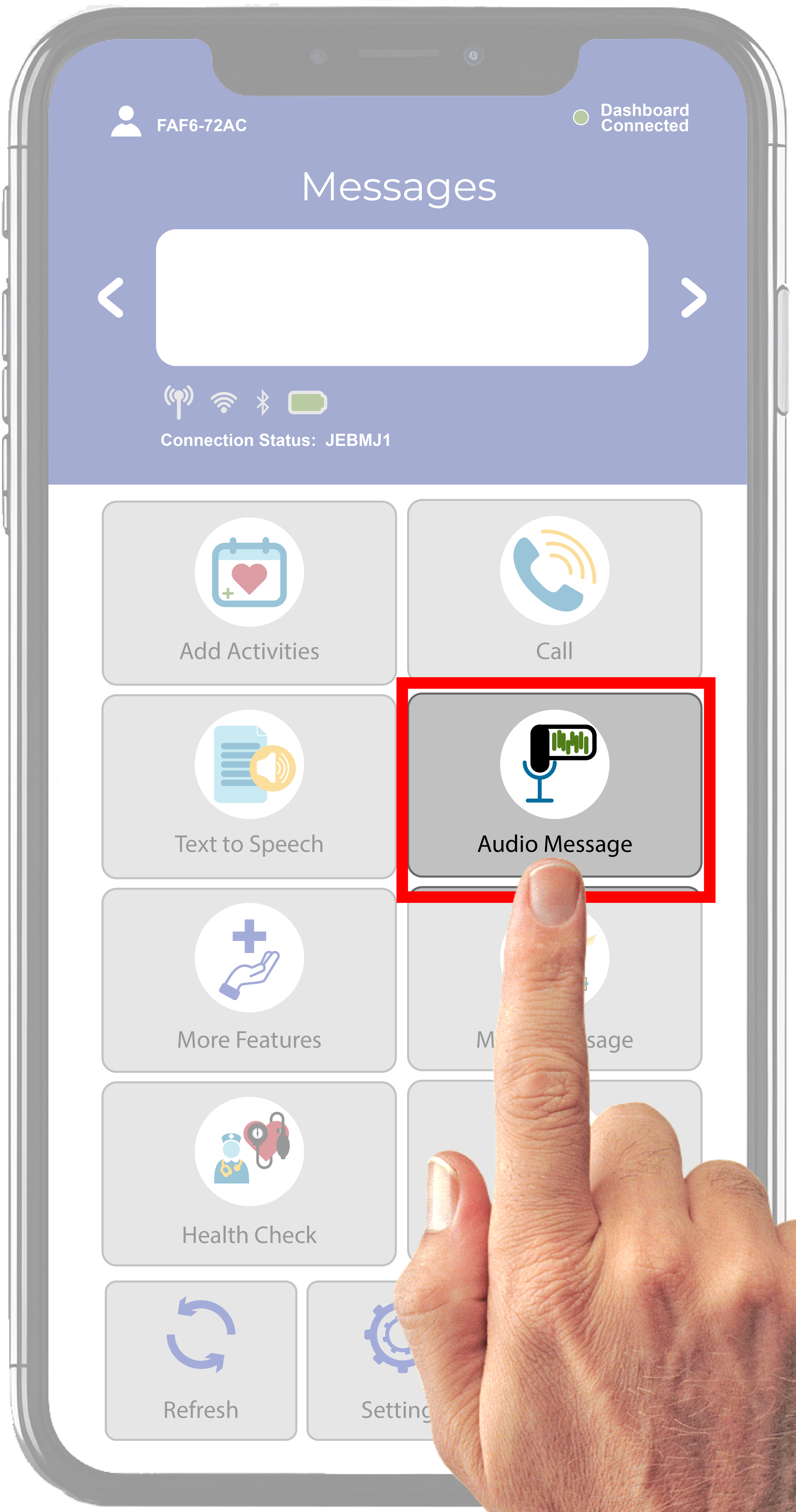
Using the mobile app, the Administrator/ Advisor selects the Audio Message Icon to send either a Natural or Translated Voice Message
2. For Natural Voice Messages
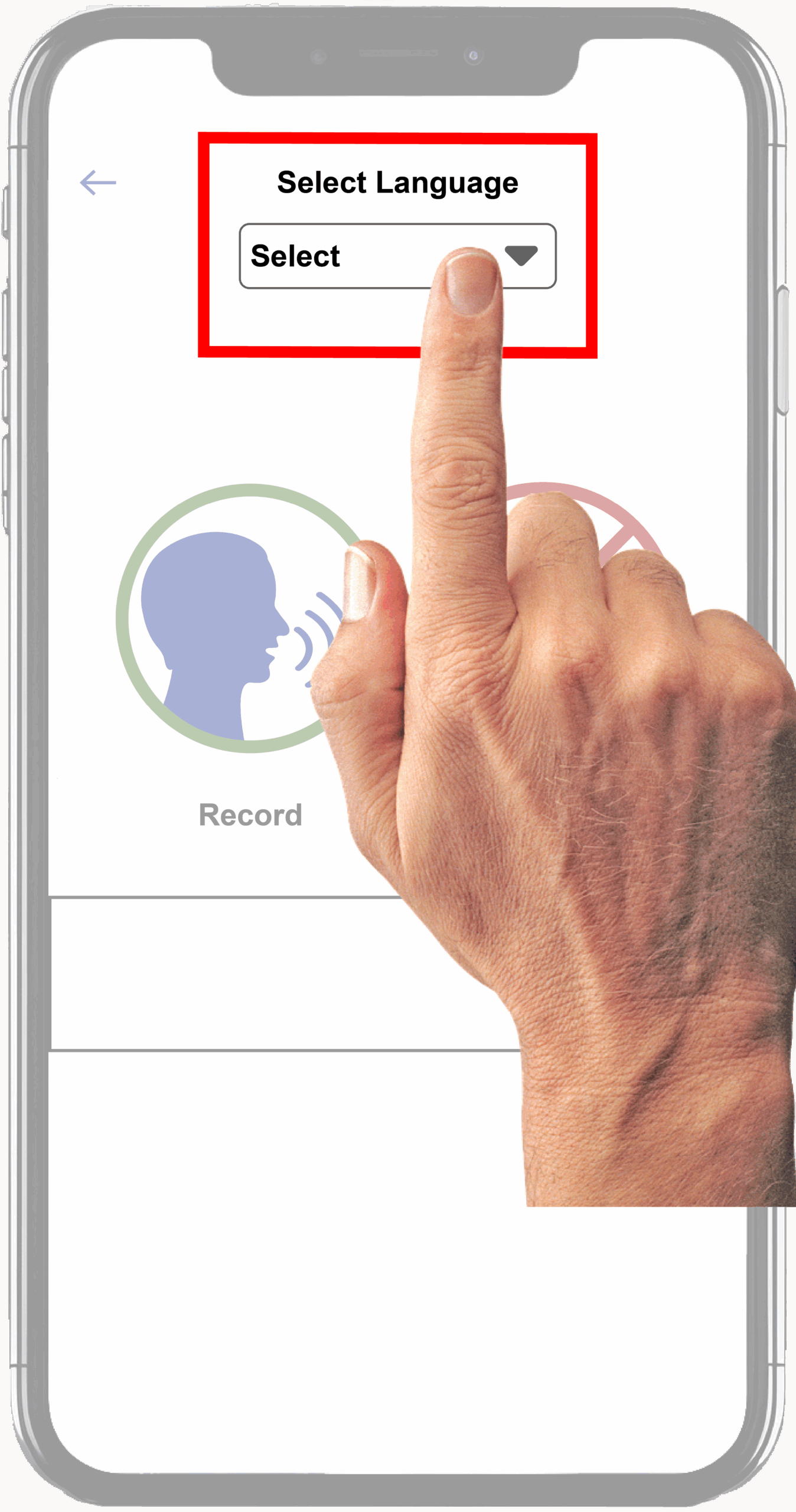
- Set the Select Language box to “No Translation”
- When ready to start recording the message, select the record icon. This will bring up a green alert box that says recording started. Begin talking to record your message.
- Once you are done recording your message, select the stop recording & send icon
- Receive incoming voice message:
- Måna’s LED will flash “Green” to visually alert the Client of an incoming Message
- Then, Måna will play a short video announcement “There is an Incoming Message”
- After a 10 second delay, the voice message will play.
3. For Translated Voice Messages
- Set the Select Language box to the desired language for translation.
- When ready to start recording the message, select the record icon. This will bring up a green alert box that says recording started. Begin talking to record your message.
- Once you are done recording your message, select the stop recording & send icon, After finishing the recording, the mobile app will display the recorded message and the translated message in the two text box areas on the display.
- Receive incoming voice message:
- Måna’s LED will flash “RED” to visually alert the Client of an incoming Message
- Then, Måna will play a short video announcement “There is an Incoming Message”
- After a 10 second delay, the voice message with translation will play using a native speaking voice in the language selected.
1. Media Message Feature
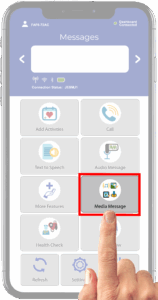 Select the Media Message icon in the mobile app.
2. Choose File Type to Share
The Administrator or Advisor will select the file send icon at the bottom of the mobile app display.
- Using your file system on your mobile device, select the desired file type to Share. Once selected the file will be automatically uploaded and sent to Måna to be played instantly.
- Måna supports a variety of Video files (.mp4, .mov), Music / Audio-Book / Old TV & Radio shows files (.mp3), Book files (.txt), and Picture files (.jpg, .JPG, .jepg, png, .GIF, 3GP)
- Once completed, select the back to menu arrow (top Left-hand side of the mobile apps display) to return to the main mobile apps menu.
3. Media Message - Receiving
- Måna’s LED will flash “Green” to visually alert the Client of an incoming Message
- Then, Måna will play a short video announcement “There is an Incoming Message”
- After a 10 second delay, the Media message will be played:
- If it is a picture or video message and then the image will be shown at full screen and then after 15 seconds, it will shrink down into the Memory Tile.
- If it is an audio message such as song, audiobook / poem passage, TV or Radio show, then the file will play until it is completed.
- If it is a text passage from a book, the words of the passage will appear in the Memory Tile, and Måna will read through the passage highlighting each sentence in blue until completed.
File Size Limits – The Måna mobile app allows a video of 1 minute and fifteen in size or 200 Mb uncompressed and 40 Mb compressed to be sent to the Måna Client. If the file size is too big, the Måna Mobile app will provide a red warning message that the file is too big.
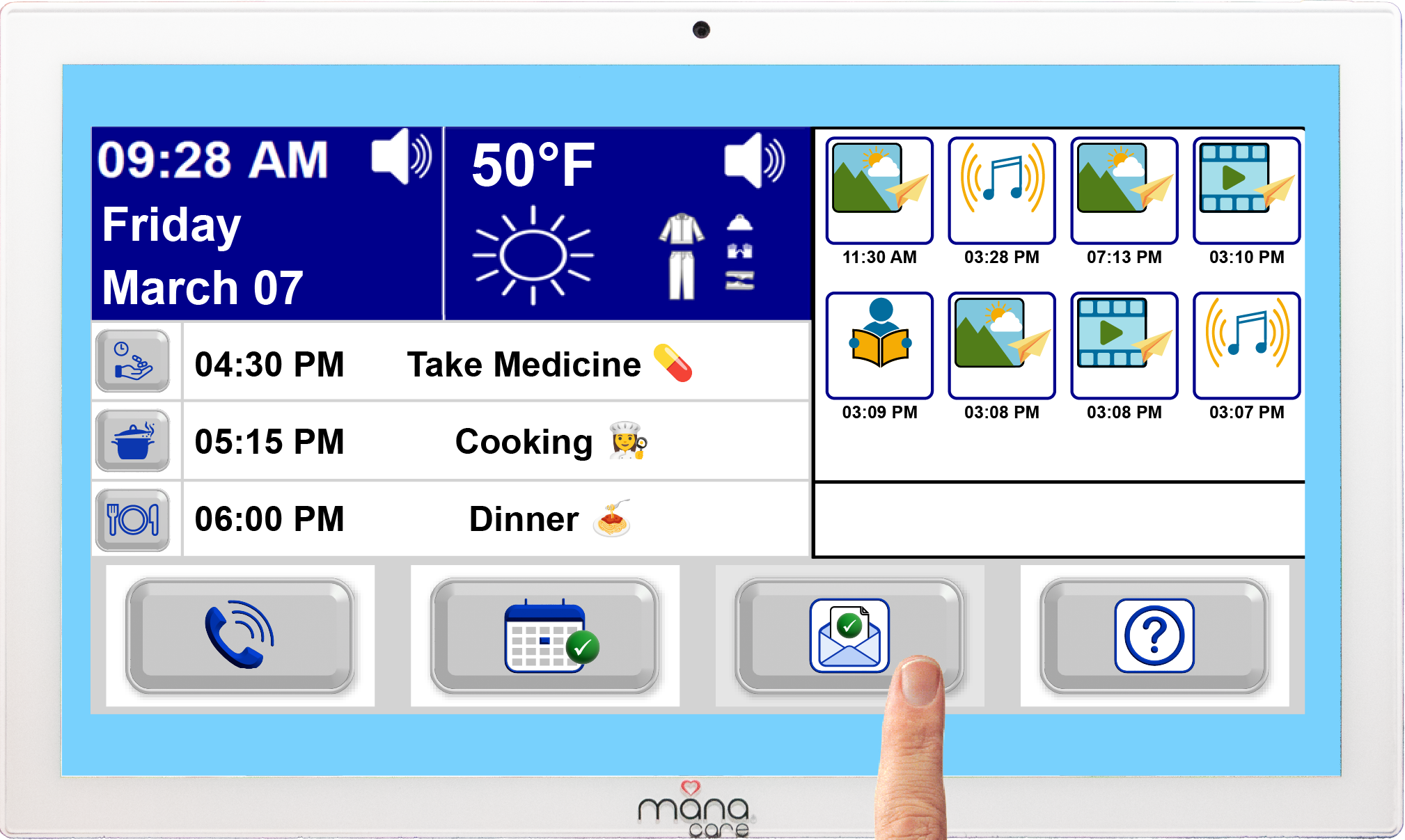
- Måna offers Media Message Playback by selecting the check message button (3rd button from the left at the bottom of the Måna display). After selecting the check message button, select any of the stored messages seen in the memory tile to re-play at any time.
- Saved Messages have a 24-hour lifespan after which they are deleted to make room for new messages.
- The only exception to this 24-hour media message lifespan is for the 10 images that make up the Digital Picture Frame. These 10 images are not erased, unless an 11th image is sent. In this event, Måna will erase the oldest Digital Picture Image and replace it with the 11th picture sent.
The Måna Digital Picture Frame operates as follows:
- Måna offers a built-in Digital Picture Frame that allows permanent storage of up to 10 pictures. These images are taken from the first 10 pictured sent to Måna using the Media Message feature.
- Pictures are rotated every 15 seconds and displayed in the Memory Tile on Måna.
If an 11th picture is sent, then this image will replace the oldest picture among the 10 pictures used in the Digital Picture frame. This way the Digital picture frame will always remain freshly curated.
To place a video call from the Måna Client to an Administrator or Advisor do the following:
- Push the Call Button – Located in the lower-left corner of the Måna Tablet screen.
- Select a Trusted Advisor – Pictures of all connected Administrator and Advisor will appear on-screen. Select the Administrator or Advisor to image to place a video call or select the microphone icon in the bottom right-hand box associated with each Advisor to record and send a natural voice message in the clients language to your selected Advisor. The Advisors will receive a text message on their mobile phone with the message translated into the language that their Måna Mobiel App is set to. You have 15 seconds to record your message.
- Instant Video Connection – The LED light on the Måna Client will turn “Green” as the video call is sent automatically to the mobile phone of the Advisor being called. The outgoing call will ring on the Advisors mobile phone who simply answers the incoming call to connect to the Måna Client.
- Ending the Call – The Administrator or Advisor who receives the call needs to simply push the red "End Call" button, to terminate the video call. This will allow Måna to return to its normal display showing its “Blue” LED.
- Voice Message: If placing a voice message from the Måna Client your Administrator, they must activate this capability in the Måna Mobile app under the Settings, Options setting by toggling the Voice Messaging button to its on position.
To place a Call from the Administrator or Advisor to the Måna client do the following:
- Initiate the Call – The Administrator/ Advisor selects the "Call" button from the mobile app. They select the Måna tablet they would like to call and then initiates a video or audio call.
- Måna Auto-Answers – The call connects with Måna within 10 seconds, and the tablet automatically answers, displaying the live video call or supporting an audio call.
- Ending the Call – The Administrator/ Advisor presses "End Call," disconnecting the session.
The Måna Digital Care Assistant is designed to help your loved one stay independent, safe, and connected at home while giving your family peace of mind. It offers gentle, dignified support for older adults and those with cognitive challenges and helps ease the emotional and logistical stress that families often feel when coordinating care. Måna exists to ensure your loved one is never alone, and that your family feels supported every step of the way. How Måna Helps Support Your Elderly Family Member:
- Promotes independence by guiding daily routines, reminders, and helpful prompts.
- Provides 24/7 support, ensuring your loved one always has someone to call on — even in moments of confusion or worry.
- Reduces feelings of isolation through simple, voice‑activated video calls that reconnect them with family and caregivers.
- Offers gentle cognitive support with structured prompts, orientation cues, and calming interactions.
- Enhances safety at home by enabling quick access to help when something feels wrong or overwhelming.
- Eases family coordination by keeping everyone connected and informed without adding more stress to your day.
- Respects dignity by offering assistance in a warm, non‑intrusive way that feels like companionship, not surveillance.
“HELP” Voice Command
- The “HELP” voice command – This is set to the on position during initial set up and configuration of Måna. However, the Administrator/ Advisor has the ability to turn off the HELP voice command using the mobile app under settings and options menu.
- Your Loved One Says or Shouts "HELP" – If the voice commands are on, then Måna detects this critical voice command.
- Automatic Conference Call Initiated – Once “HELP” is detected, then Måna initiates a video conference call among all the Administrator and Advisors that your Administrator has set up in the Måna Mobile App ‘s calling feature group to get help for their Loved One.
- Advisor Response – At least one advisor can assist or arrange emergency services.
- Ending the Emergency Call – The call remains open until all Administrator/ Advisors press the “Red End Call icon.
📌 Important Note: The HELP command is a secondary safety feature, not a substitute for a fully monitored emergency service.
- Administrator/ Advisor can initiate a Wellness Check – Calls the client using the mobile app.
- Client Auto-Answers – The live feed activates, allowing a visual check for wellness.
- Verbal Inquiry – The Trusted Advisor can speak to confirm if their Loved One is okay.
Ending the Check – Pressing "End Call" closes the session.
To access the Ask Måna – Digital Caregiver Assistant do the following:
- Tap the Question Mark Button – Located at the bottom right-hand corner of the Måna Display, to ask Måna a question push the button.
- Måna Avatar Appears – Måna plays a short video asking, “What is your question?”.
- Client Asks a Question – After the video stops, your Loved One has up to 8 to 10 seconds to ask Måna a general question or a question to help them remember important information about their lives by speaking in their native language.
- Once the 8 to 10 seconds recording time for the question is reached, Måna will display your question in the text box below the Memory Tile and then respond with her answer on average between 5 to 10 seconds.
- Text Answer Displays First – Måna will display its text response to the question in the Memory tile.
- Voice Response Follows – After a 5-second pause, Måna reads the answer aloud in the client’s set language and highlights each sentence in blue so your Loved One can follow along with Måna as she reads the answer aloud.
- Repeat as Many times as desired – Måna is always ready for additional questions.
- Måna Memory Assistant – To configure Ask Måna to recall personal information about your Loved One’s life, a personal story needs to be curated and uploaded in the mobile app by selecting the Settings icon at the bottom of the mobile app display and selecting the My Måna button at the bottom of the Settings display.
- Creating your Loved One’s Life Story
To create a Client story
To create a Client story, first enter a name in the Client Name text box. This can be their full name, first name, or nickname.
Personal Story
Next, begin to enter their Personal Story by typing it into the “Record or Enter Client Story” text box. There is an option to record the story by selecting the start recording icon and stop recording icon once done. The third option is to cut the text from another document and paste it into the “Record or Enter Client Story” text box.
+ add
Once complete, select the “+ add“ icon at the bottom left-hand side of the My Mana display
Send the Story
Once added, select the mail icon button to send the story to your Loved One’s Måna Device. This stores their memories so that when the Ask Måna Digital Caregiver Assistant is selected, it can now answer questions about your Loved One’s life.
Modify the Story
If there is a desire to modify the Personal Story, then once in the My Måna display, you can push the arrow in the text box next to the select button and select the personal story you would like to modify. Once the name appears, push the select button, and the Personal Story will reappear in the “Record or Enter Client Story” text box. After modifying the text, select the “update” button to preserve the new file and resend the file to Måna by selecting the mail button.
Multiple Stories on Advisor App
The mobile app under My Måna provides the Administrator the ability to create multiple Personal Stories by repeating steps i to iv. This is useful if you are a care provider with multiple clients to care for.
📌 Important Note: This feature is intended to assist people with mild to medium cognitive challenges to help them recount stories and personal information about their lives. While this is a great tool to help Loved Ones and families remember important facts in their personal lives, it can also be abused, As a result we only allow the Administrator who has permission from their Loved One to be their primary care provider.
- Client View – This feature is found on the main mobile app display, and it is intended to allow Administrator / Advisors to check to see if their Måna platform is working correctly.
- Tap the Client View Icon – Located on the mobile app's main display, and the mobile app will request a screenshot of your Loved One’s Måna display to ensure it is tracking the daily activities and working correctly.
- Screen Shot Returned – After selecting the “Client View” icon, it will take between 10 to 15 seconds to return the image for display in the Mobile app.
To use the “+ Features” function on the mobile app do the following:
Tap the + Features Icon
Located on the mobile app's main display, the “+ Features” Icon is where special features and new features will be added to enhance the Måna experience.
Caregiver Assistant
After selecting the “+ Features” Icon, the next display will show additional features. Selecting the Caregiver Notes icon opens a new display that allows caregivers to dictate their notes from client calls.
- Once selected, the Sharing text box will appear.
- Press the arrow in the box and select the Administrator for the Loved One’s family members to appear.
- Next, select the family members to receive the Caregiver Notes by clicking on the radio button to the on position.
- Now press the record button and record your notes from your Caregiver Visit with their Loved One. Once completed, push the stop recording icon.
- Send the recorded message by pushing the mail button icon.
Support
This feature will allow Administrators, Family members, and Caregivers the ability to ask our Mana Customer Support Assistant questions about features and pro tips to better utilize the Måna platform.
Games
This feature is not active at this time.
- This feature will allow Loved Ones to sharpen their minds by playing games like Tic-Tac-Toe, Picture Matching, Number Matching, and solving simple 12-piece puzzles.
- The games are designed for solo play or with other family members, allowing them to help their loved ones as needed. Think of a Family game night activity…..
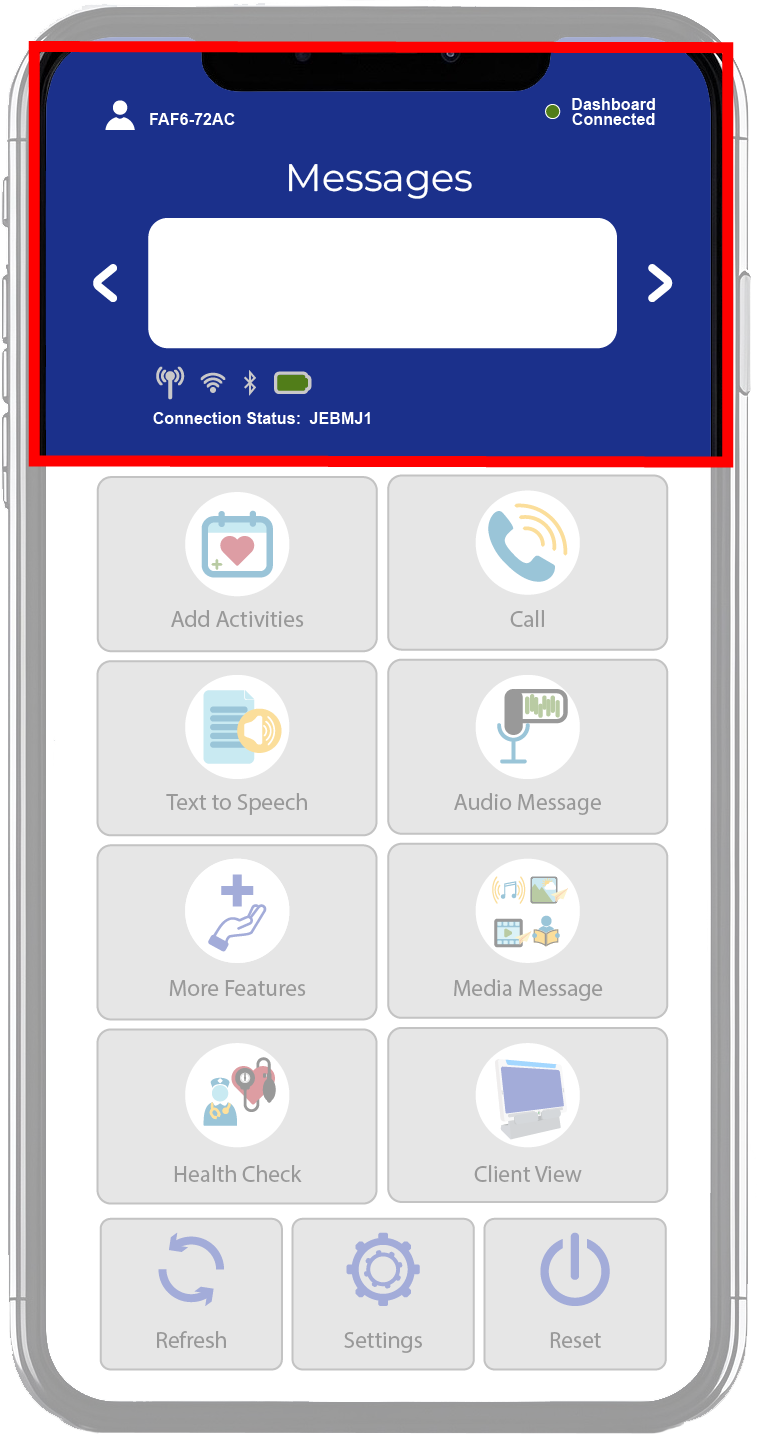
The Status provided to the Administrator or Advisor is as follows:
Status Area – Located on the top of the mobile app display are a series of indicators that provide the following status of the Måna platform:
Dashboard Connected
This indicator is green when connected to the Måna MQTT services. If the device is not green, the mobile app will not work. To fix this issue, select the refresh icon to see if this changes to green. The mobile app will also refresh automatically every minute.
Device Name
At the top left of the display, a person icon shows a name next to it, representing the device to which the Mobile app is currently connected for sending and receiving information. This can be changed in the Settings display by selecting the Add/Select/Connect icon and either adding your device name or selecting an existing device to connect.
Message Status Text Box
At the top of the mobile app display sits a Message Text Box. This is used to send important messages from the Måna Client that is connected to the mobile app, as indicated in the Device Name. Types of information shared are activity alerts, battery power status, and other types of Måna status information. This Message center will become more critical once more advanced “+ Features” are implemented in the future.
Connected Status
Just under the Message Status Box on the main mobile app display shows the Connection status of the Måna Client. It will show the cellular and WiFi icons in white if active or crossed out with a red line if not connected. When connected, it will list by active order, the name of the Cellular Network, WiFi Network, and any Bluetooth devices connected to the Måna Client. As with the Dashboard Connect identifier, these Connection Status indicators can be refreshed by selecting the Refresh icon on the main app display.
The Reset Icon on the mobile app does the following:
Reset Icon - As long as you have a connection status to cellular or WiFi and you suspect that the Måna Client is not working properly or is hung up in an unknown mode, then the Administrator / Advisor can select the Reset Icon, which will remotely turn off the Måna Client and restart the device.
Yes, the stop button is located with a “Red button icon in the lower right had picture frame box. The Client can push the stop button to terminate any incoming message our activity being performed by the Måna Client. Any incoming message will be saved to the Måna Client and accessible under the message playback button at the bottom of the Måna Client.
Yes, the Måna Client automatically provides Emergency Alerts every 3 hours throughout the day. If a weather alert or local hazard type of Alert is present, then the Måna Client will sound an audible beep five times and then proceed to announce the Emergency Alert affecting the area where the Måna Client resides. If the Måna Client provides an alert, then it will be communicated in the Måna Mobile App as well.
Note: Emergency Alerts needs to be activated by the Administrator through the Måna Mobile App under the Settings, Options area by turning on the Emergence Alert’s toggle button.
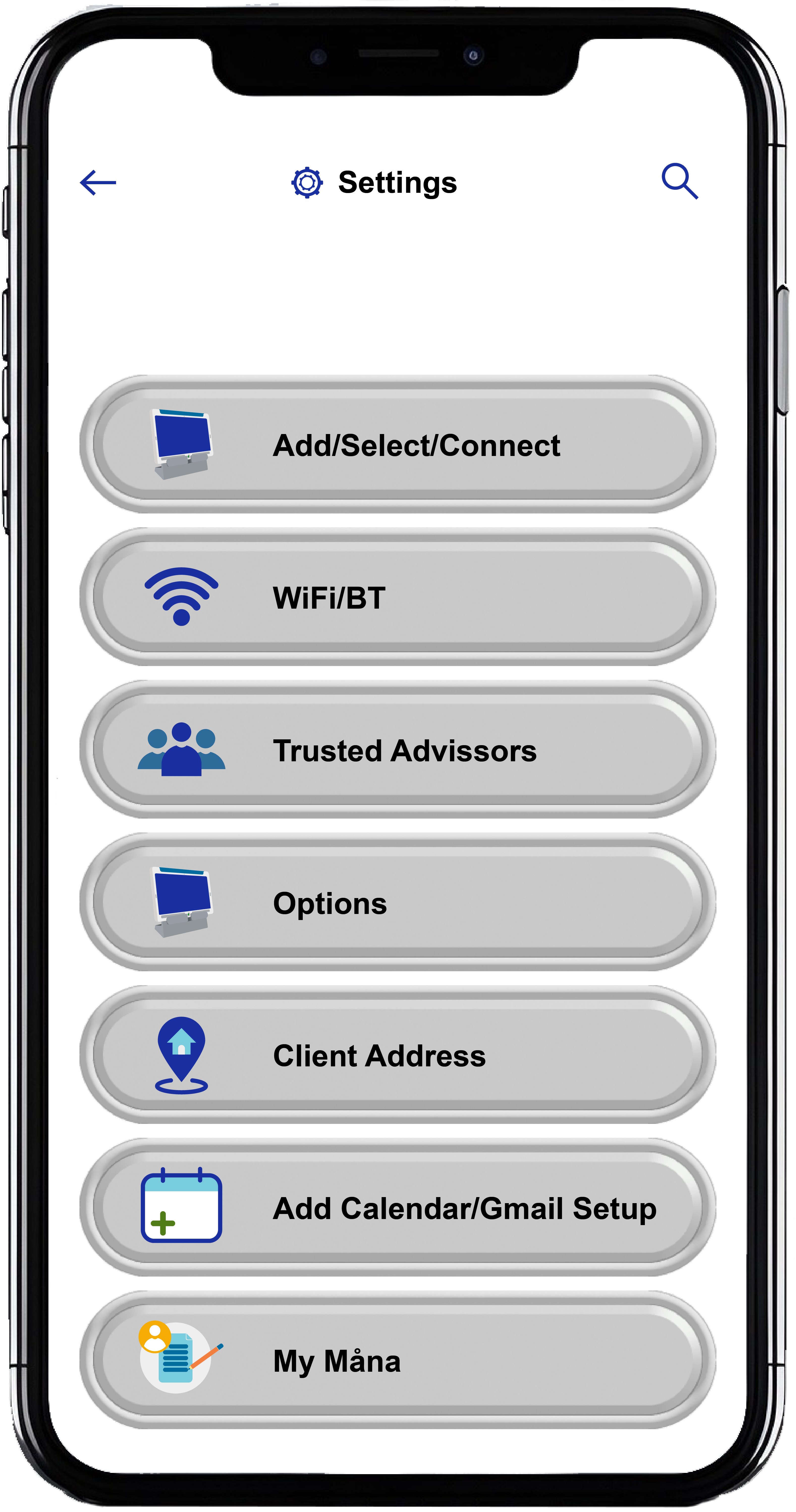
The Settings Icon, when pushed, opens up to a number of options to help the Administrator / Advisor set up and manage the operation of the Måna Client remotely:
Add/Select/Connect
This icon, when selected, allows the Administrator / Advisor to add new Devices to their mobile app for control by entering the device number and assigning a client name alias. After adding devices to access via the mobile app, you can select a device by pressing the arrow in the text box above the Connect and Delete devices. To connect or change to a new device, select the arrow in the text box and select the device or client to connect with. Once selected, it will confirm that the mobile app is now connected to that device. This can be confirmed by checking the main display of the mobile app under the Device Name being shown.
WiFi / BT Connect
This icon is selected to allow the Administrator / Advisor to remotely scan for WiFi networks available to connect at your loved one's residence. Once the WiFi Connect icon is selected, the mobile app will show a list of available WiFi services to connect to. Select the one that the Client subscribes to and enter their password for that WiFi node when requested. Once entered, the Måna Client will try to establish a connection to that Wifi node; this may take about 40 seconds to establish the connection. The exact process is used for detecting Bluetooth speakers to pair to the Måna Client remotely through the mobile app. The Bluetooth device at the residence needs to be placed in its pairing mode for this to work successfully, prior to the Bluetooth scan beginning.
Trusted Advisors
This icon allows the user to add or select an Advisor and then add Family members to that group.
Options
This is one of the most important icons to select as it enables the Administrator / Admin to configure the entire Måna Client remotely. It provides the ability to enable and disable features that control the delivery and presentation of information to the Måna Client. It allows the Administrator / Advisor to set the time zone and language that the Måna Client responds to.
Client Address
This icon allows the Administrator / Advisor to set the residence address where the Måna Client will reside. This is critical as the same information is used to set the location for the correct weather reporting.
Add Calendar
This icon provides the unique Google Calendar ID associated with the Måna Client. After selecting this icon, select the save button to activate the calendar successfully if it was not done correctly during the auto configuration of Måna Client during setup.
About Options
This icon provides all the information about the Måna Client and mobile app by showing the latest versions of software and device build information for reference.
Call Settings
This icon allows the Administrator / Advisor to set up and control the performance of the calling feature supported by the Måna Client. It allows the Administrator / Advisor to Register, Link a new Måna Client, Create the calling group, and add new members to the calling group. It provides the ability to remotely close the calling app by selecting the red “X” if needed to ensure the Måna Client returns to its main display and operation.
My Måna
The purpose and setup of this memory feature is to help people with cognitive challenges navigate through their daily lives with dignity. The setup of this feature is documented under the Ask Måna – Digital Caregiver and Memory Assistant, Section 9h ("Memory Assistant Setup") of this Måna Technical Support document.